The score card gives you a quick summary after each take before you dig into the charts.
Accuracy and Stability summarize the completed take.
Accuracy: how close the take was to the target pitch center. Use it as a fast check for whether notes tended to land centered, sharp, or flat.
Stability: how tightly each eligible note was held. A better stability score means the pitch stayed tighter instead of wandering within those notes.
Review moments: buttons above the Pitch Timeline identify a specific flat or sharp span and a specific unstable span when useful. Select a button to jump to that moment; playback does not start automatically.
By default, pitch feedback—including the score card—stays hidden during a take and returns when the take ends. This keeps the app aligned with ear-led practice: play first, then review the results afterward.
What does the Note Map show?
The Note Map summarizes how in-tune you were for each note.
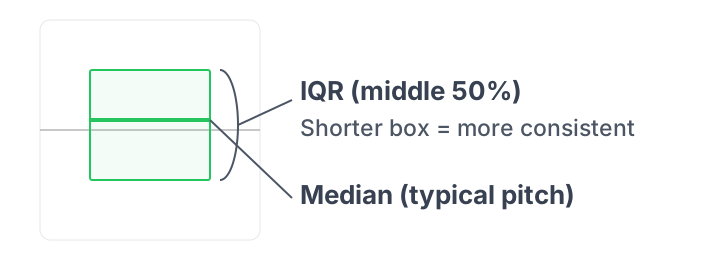
The gray box shows where the middle half of your pitch readings landed—this is called the interquartile range (IQR).
A shorter box means you were more consistent; a taller box means your pitch varied more.
The colored bar is your typical result (the median).
Green means close to center, orange means sharp, and blue means flat.
Use this to spot notes that drift and whether you are generally sharp or flat on each one.
Useful chart controls
View mode: Use the button in the top-right of the Pitch Timeline to switch between per-note timeline and continuous timeline.
Timeline scrolling (history): In continuous timeline view, stop the take to scroll horizontally and review earlier pitch data. During a take, the timeline follows live input.
Pitch range navigation: use the vertical scrollbar to inspect higher or lower notes. Blue marks show where pitch traces appear in the current time window. In continuous view, the horizontal scrollbar lets you navigate longer takes.
Replay: press
Play after a recorded take to listen alongside the pitch trace. The current take is temporary; starting a new take or clearing it removes the previous recording.
Panel layout: Use the center bar arrows to expand only the Note Map or only the Pitch Timeline, then restore both panels.
Review buttons jump to a moment. The right-hand icon switches timeline view; the arrows change panel layout.
Use the Tonic selector at the top of the screen. You can also tap a note name in the Note Map header. The columns rotate so each row begins at that tonic; your data and transposition remain unchanged.
Choose a tonic from the top selector or directly from the Note Map header.
This sets a global tonic for the chart and helps compare intonation relative to a key center.
Drones
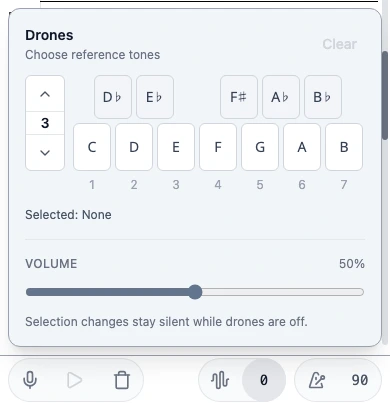
Use the waveform button in the bottom take bar to start or stop your selected reference tones. Tap the adjacent note control to choose tones, change register, or adjust volume. Drone registers are independent of the visible chart range. Changing tonic transposes your selected drones.
Tap the note control beside the waveform icon to choose tones, register, and volume.
Metronome
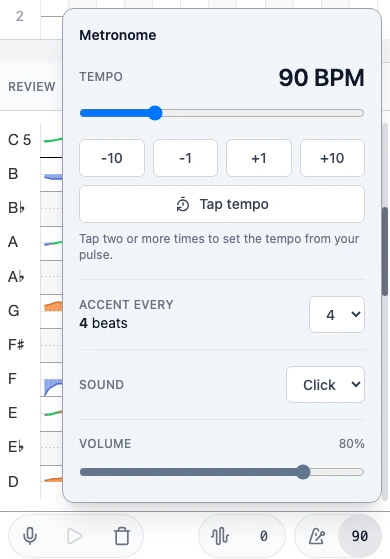
Use the metronome button to start or stop the pulse. Tap the adjacent BPM control to adjust tempo, accents, Click or Tone sound, volume, or tap tempo.
Tap the BPM control beside the metronome icon to adjust tempo, accents, sound, and volume.
Backing tracks
You can practice alongside another audio app. Use headphones to reduce sound leaking into the microphone. On Android, audio routing can vary; check pitch detection, replay, and backing-track output together.
Open Settings from the top-right menu. Choose Pitch, Audio, or Display.
Pitch
Transposition
Changes the note names and octaves PitchLog displays without changing the pitch it detected. Use it to match music written for a transposing instrument.
Reference pitch (A4)
Sets PitchLog’s tuning reference. Keep the 440 Hz default unless you practice with an instrument, ensemble, or recording tuned to another standard, such as 442 Hz.
Detection strictness
Filters uncertain pitch detections. Raise it for stricter filtering when detections are noisy or jumpy; lower it to accept more detections when soft notes are being dropped.
Hide notes under
Filters very brief notes out of the Note Map and overall scores. Raise it to remove accidental or passing notes; lower it if intentional short notes are missing. Notes held for at least one second stay included, and the Pitch Timeline is unchanged.
Audio
Record audio for replay
Saves temporary audio on this device so you can replay the current take. Replay takes stop automatically after 5 minutes on the web, 1 minute on Android Free, or 5 minutes on Android Pro; with replay off, chart-only takes stop after 10 minutes.
For microphone input, Bluetooth routing, and echo cancellation, see Fix a problem.
Display
Show live pitch during takes
Off by default, so feedback stays hidden until the take ends. Turn it on for continuous visual feedback on every take. While feedback is hidden, Auto-reveal between phrases shows results after 0.8 seconds without a detected pitch, then hides them when you resume. Auto-reveal and Show live pitch apply only to the current take.
Visible octave range
Chooses which octaves the charts show without changing captured pitch data or drone selections.
Tritone label
Chooses ♯4 or ♭5 relative to the tonic to match your exercise. Both represent the same pitch; note names and scale degrees update without changing scores.
Green range
Sets how close to the note center a pitch must be to appear green. It changes chart colors, not recorded readings or scores.
Timeline smoothing
Light (the default) softens small pitch changes in the timeline, both during a take and when replaying it. Choose Off to see every tracked fluctuation. This changes only the timeline's appearance; scores and recorded pitch readings stay unchanged.
Most setup issues come from browser microphone permissions, distance from the mic, or other audio leaking into the microphone.
Microphone access denied
Allow microphone permission in browser settings, then refresh. If you added PitchLog to your home screen, pull down from the top of the page to refresh.
No pitch detected
Move closer to the microphone and reduce background noise.
If soft notes are missed, lower Detection strictness in Settings → Pitch. Lower settings may also pick up more noise.
Keep PitchLog visible and your screen unlocked during a take. Switching apps or locking the screen can interrupt pitch detection and recording.
Bluetooth input or replay problems
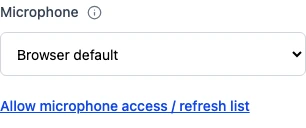
Stop the take, then open Settings → Audio and choose a different Microphone input. On Android, try Speakerphone if it is listed, then check pitch detection, replay, and where backing audio plays. Input names and routing vary by device.
Settings → Audio. Browser example; microphone choices vary by device.
Echo cancellation (Audio)
Off by default for pitch practice. Try turning it on if speaker sound leaks into the microphone, or off if low notes jump or disappear. Changes apply to the next take.
PitchLog stores settings (like transposition and onboarding state) in your browser local storage. It does not upload your microphone audio or recordings.
How long does my recording stay available?
The current take is temporary. Starting a new take or clearing it removes the previous recording. See Record audio for replay for recording settings and take duration limits.